Manage bugs from Claude, Cursor and other AI assistants with MCP
You found the bug while working with an AI assistant. The fix will probably happen there too. Until now, the bug report was the one step that meant leaving the conversation, opening the tracker and retyping what you had just said. With MCP, it doesn't.
BugTrack now speaks the Model Context Protocol (MCP), so Claude Code, Claude Desktop, Cursor and other MCP clients can report, search, read and update bugs in your own tracker, screenshots included. You create a personal token in Settings, add one server entry to your assistant, and ask in plain language. The assistant acts as you, with your permissions and nothing more, and your bugs stay on your own server.
What is MCP, in one paragraph
The Model Context Protocol is an open standard, introduced by Anthropic in late 2024, for connecting AI assistants to other software. A program that speaks MCP publishes a short list of tools, each with a name, a description and the arguments it takes. The assistant reads that list, decides when a tool would help with what you asked, and calls it. One protocol covers every client that supports it, so a tracker that speaks MCP works with Claude Code, Claude Desktop and Cursor without a separate plugin for each.
Why a bug tracker is a good fit for an AI assistant
Most of what slows bug tracking down isn't the thinking. It is the clerical work around it: describing something you already described to a colleague, attaching the screenshot you just took, finding the bug number you need, updating the status after the fix you just made. Those are exactly the tasks an assistant is good at, and the ones people skip when they are busy, which is where the hidden cost of bad bug reports comes from.
It also helps the quality of the report. Ask an assistant to file a bug from a conversation in which you have already explained the steps, the browser and what you expected, and it tends to write the report you would have written on a good day. The habits in how to write a bug report still apply. You simply don't have to type them all again.
What your assistant can do in BugTrack
BugTrack's MCP server offers six tools. Every one of them goes through the same code as the web app, so a bug filed by an assistant is identical to one filed by hand.
| Tool | What it does | You might say |
|---|---|---|
list_projects | Lists your projects, your role in each, and their members | "Which projects am I on?" |
search_bugs | Finds bugs by text, status, priority, project or assignee | "What critical bugs are open and assigned to me?" |
get_bug | Reads one bug with its comments, recent activity and screenshots | "Look at bug 42 and tell me what you think is wrong." |
create_bug | Reports a new bug, with images attached | "File this as a high-priority bug in Website and attach the screenshot." |
update_bug | Changes status, priority, assignee, due date or text | "Mark bug 42 fixed." |
add_comment | Comments on a bug, with images if needed | "Comment on 42 that it was a caching issue in the CDN." |
Because the changes are made through BugTrack's own logic, everything that normally follows still happens: the activity timeline records it, the assignee gets their email, the project's Slack channel gets its message. Nobody on the team needs to know an assistant was involved for the process to work as usual.
Screenshots in both directions
A bug report without the screenshot is half a bug report, so images were part of this from the start. An assistant can attach PNG, JPG, GIF and WebP images up to 10 MB when it files a bug or comments. It can also look at the screenshots already on a bug, up to five at a time, which is what makes "look at bug 42 and tell me what's wrong" a useful request rather than a guess from the title.
How to connect BugTrack to your AI assistant
It takes about five minutes, most of which is deciding what to call the token. You need BugTrack 1.4.18 or newer, which existing installs can get from the in-app Updates page, and new users from the download page.
Step 1: create a personal token
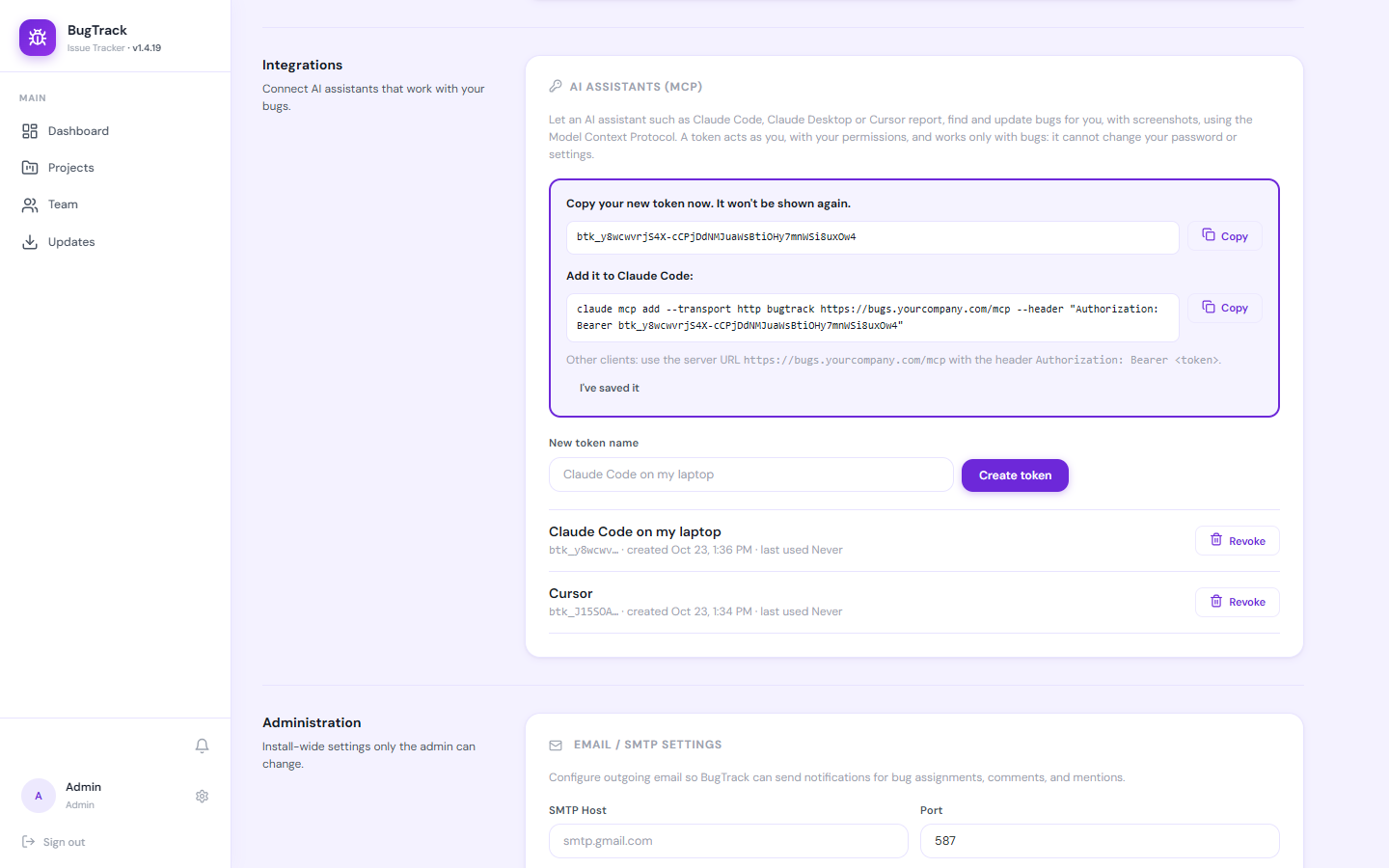
- In BugTrack, open Settings and find AI Assistants (MCP) under Integrations.
- Give the token a name you will recognise later, such as
Claude Code on my laptop, and click Create token. - Copy it straight away. It starts with
btk_and is shown only once.
Step 2: add BugTrack to your assistant
Your server address is your BugTrack address followed by /mcp, for example
https://bugs.yourcompany.com/mcp. The token goes in an
Authorization header.
Claude Code: run this once in a terminal.
claude mcp add --transport http bugtrack https://bugs.yourcompany.com/mcp \
--header "Authorization: Bearer btk_your_token"Cursor: add this to .cursor/mcp.json.
{
  "mcpServers": {
    "bugtrack": {
      "url": "https://bugs.yourcompany.com/mcp",
      "headers": { "Authorization": "Bearer btk_your_token" }
    }
  }
}
Claude Desktop: add this to claude_desktop_config.json. It uses the
small mcp-remote bridge, so it needs Node.js on your computer.
{
  "mcpServers": {
    "bugtrack": {
      "command": "npx",
      "args": ["mcp-remote", "https://bugs.yourcompany.com/mcp",
               "--header", "Authorization:${AUTH}"],
      "env": { "AUTH": "Bearer btk_your_token" }
    }
  }
}
Any other client that supports remote MCP servers over HTTP works the same way: the address, plus the header. The full reference is in the BugTrack documentation.
Step 3: ask
Start with something harmless, such as "list my BugTrack projects", to confirm the connection. Then use it the way you would talk to a colleague who has the tracker open:
- "Report a bug in the Website project: the checkout button does nothing on Safari. High priority, assign it to Priya, attach this screenshot."
- "What's open and overdue in the Mobile app project?"
- "Read bug 42 and its screenshots, then suggest where in the code the problem is."
- "I've just pushed the fix. Mark 42 fixed and comment with what changed."
Security: the assistant acts as you, and only as you
Giving software the ability to change your bug list deserves more than a sentence, so here is exactly what the token can and cannot do.
- Your permissions, not more. The assistant acts as the user who owns the token. If you are a viewer on a project, your assistant can read it and change nothing.
- Bugs only. A token works on the MCP endpoint and nowhere else. It cannot sign in to BugTrack, change a password, manage users, create more tokens or run updates. A leaked token is a nuisance, not a takeover.
- Stored hashed, shown once. BugTrack keeps only a hash of each token, so not even the database holds a usable copy.
- Revocable at once. Delete a token in Settings and anything using it stops working on its next request. One token per device makes it easy to revoke the lost laptop and nothing else.
- Bug text is treated as data. Titles and comments are written by people, and occasionally by people who would like to give an assistant instructions. BugTrack tells the assistant to treat bug content as information to report on, never as instructions to follow. It is still worth reading what an assistant proposes to change before you approve it.
Where your data goes
BugTrack is self-hosted. The MCP endpoint is part of your own install, on your own server, and nothing passes through BugTrack the company. That has two consequences worth stating plainly.
First, the assistant has to be able to reach your BugTrack address. If your tracker lives on a company network, the assistant needs to run on a machine inside that network. Second, whatever the assistant reads becomes part of your conversation with it, and is handled by that assistant's provider under its terms. If some projects hold data your team may not share with an AI provider, use an account that isn't a member of them, and the assistant will never see them. More on how BugTrack handles data is on the security and privacy page.
Frequently asked questions
What is an MCP bug tracker?
A bug tracker that exposes its bugs through the Model Context Protocol, so AI assistants can report, search, read and update them directly instead of you copying text between windows.
Which AI assistants work with BugTrack?
Claude Code, Claude Desktop and Cursor, with the setup shown above, and any other MCP client that can connect to a remote server over HTTP with an authorization header.
Can the assistant do anything I can't?
No. It has your project permissions exactly, and the token cannot be used for anything except bugs.
Can I try it on the live demo?
Not this part. The public demo is shared by everyone who visits, so tokens are switched off there. Installing BugTrack takes about fifteen minutes, and MCP works from the first sign-in.
Does it cost anything?
No. MCP support is part of BugTrack, which is free to self-host for any number of users.
Connect your AI assistant to your bug tracker
BugTrack is a free, self-hosted bug tracker for small teams. MCP support, Slack alerts and screenshot attachments are all included.
Download BugTrack →